Ollama for Beginners: Running Local AI Models on Your Computer
Ollama is a free, open-source tool that lets you download, run, and manage large language models directly on your Mac, Windows, or Linux computer. It handles model downloads, GPU acceleration, and memory management so you can work with AI locally without sending data to the cloud.
Why Run AI Locally
Running models locally provides several advantages:
- Complete privacy — conversations and data never leave your machine.
- No usage limits or per-token costs.
- Works fully offline after the initial model download.
- OpenAI-compatible API for easy integration with other tools and interfaces.
- Support for vision models, tool calling, and custom behaviors via Modelfiles.

Hardware Recommendations
| Hardware Level | Recommended Models | Expected Performance | Best For |
|---|---|---|---|
| Basic (8 GB RAM, integrated graphics) | 1B–3B models (llama3.2:1b, gemma2:2b) | Usable but slower | Testing and light chat |
| Good (16 GB+ RAM) | 3B–8B models | Responsive | Daily use and coding |
| Excellent (12 GB+ VRAM GPU) | 8B–32B models | Fast and capable | Heavier workloads and vision |
Start with a 3B or 7B model. These deliver good quality while remaining practical on most laptops and desktops.
Installation
Download the official installer from https://ollama.com/download.
macOS and Linux
curl -fsSL https://ollama.com/install.sh | sh
Windows (PowerShell)
irm https://ollama.com/install.ps1 | iex
After installation, Ollama runs in the background. Open any terminal to begin using it.
Running Your First Model
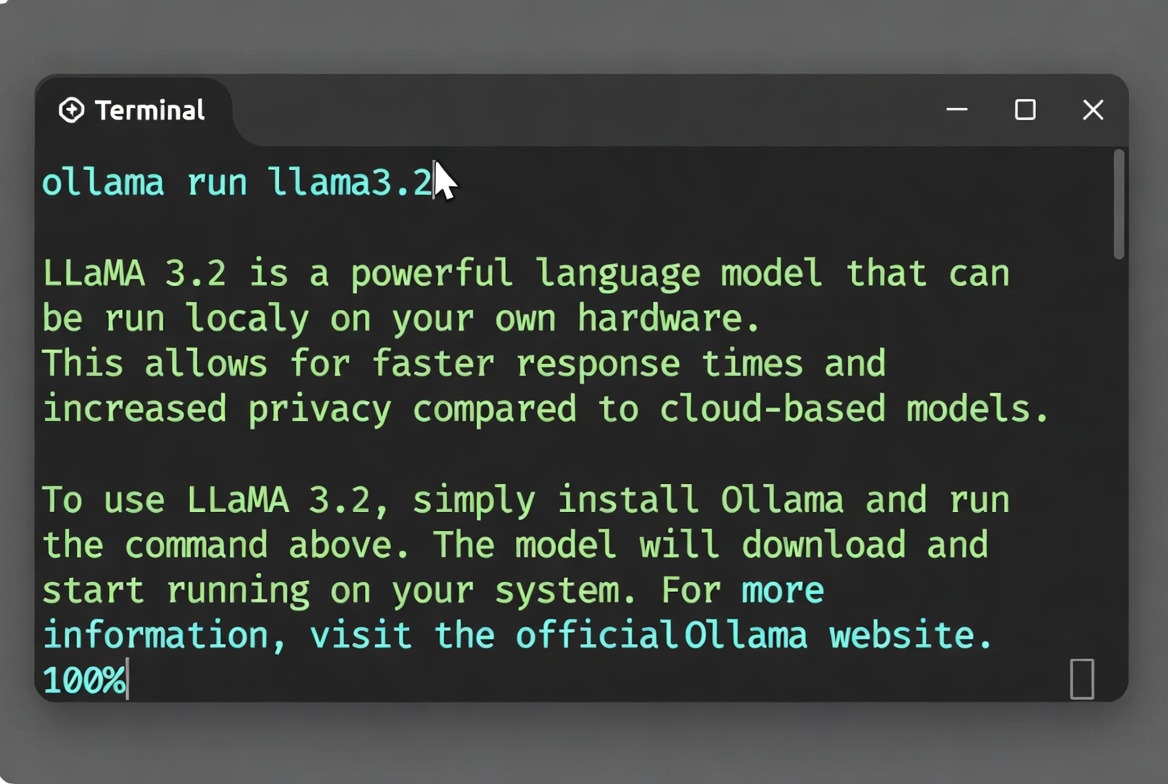
In a terminal, run:
ollama run llama3.2
Ollama automatically downloads the model on first use and starts an interactive session.
Recommended starting models
gemma2:2b— fast and efficientphi3:3.8borphi4-mini:3.8b— strong reasoningqwen2.5:3b— well-rounded performanceqwen2.5-coder:3b— coding-focused
Essential Commands
| Command | Purpose |
|---|---|
ollama list |
List downloaded models |
ollama pull <model> |
Download a model without running it |
ollama run <model> |
Start interactive chat |
ollama rm <model> |
Remove a model |
ollama ps |
Show currently running models |
ollama serve |
Start the local API server |
Adding a Web Interface with Open WebUI
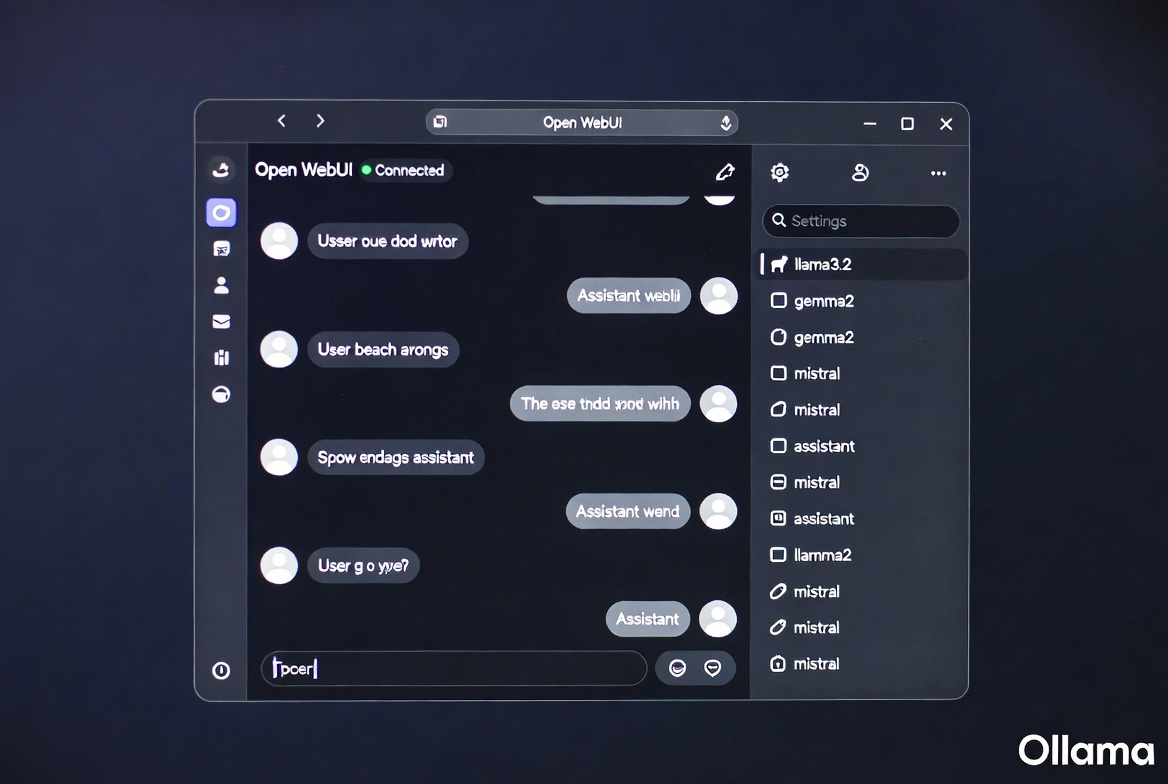
For a familiar ChatGPT-style experience, run Open WebUI via Docker:
docker run -d -p 8080:8080 \
  --add-host=host.docker.internal:host-gateway \
  -v open-webui:/app/backend/data \
  --name open-webui --restart always \
  ghcr.io/open-webui/open-webui:main
Open http://localhost:8080 in your browser and connect it to your local Ollama instance.
Additional Capabilities
Customizing Models with Modelfiles
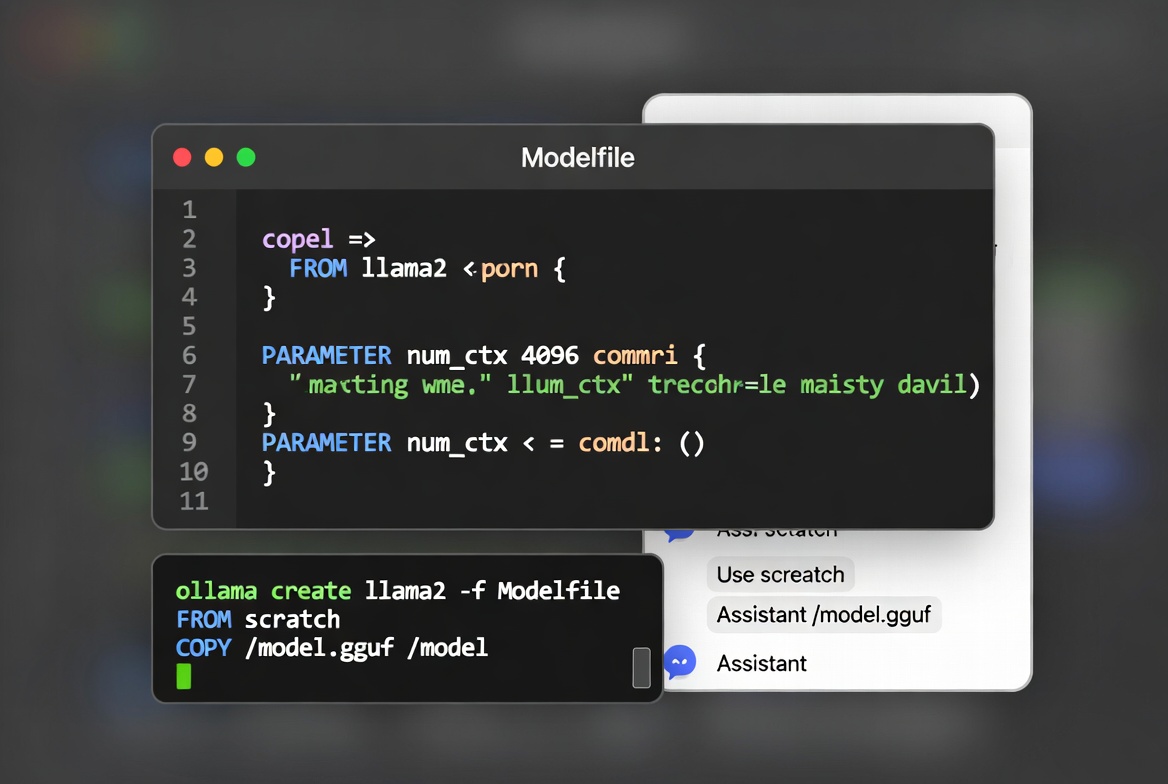
Create a plain-text Modelfile to define system prompts, parameters, and behavior, then build your custom model:
ollama create my-custom-llama -f Modelfile
Vision support
Use vision-capable models such as llama3.2-vision to analyze images.
Storage
A typical 7B quantized model uses roughly 4–6 GB of disk space.
Model library
Browse hundreds of models at https://ollama.com/library.
Next Steps
- Experiment with different model sizes and quantizations to find the best balance for your hardware.
- Connect Ollama to your preferred editors, IDEs, or automation tools via the local API.
- Explore building simple agents or lightweight RAG setups on top of your local models.
- Keep models updated with
ollama pull <model>when newer versions become available.
This setup gives you a private, cost-free, and fully controllable AI environment that runs entirely on your hardware.
This longer-form guide was created with assistance from Grok and published to the SpaghettiStories _vibe101_ collection. Images generated with Grok Imagine.